
lustyd
Well-Known Member
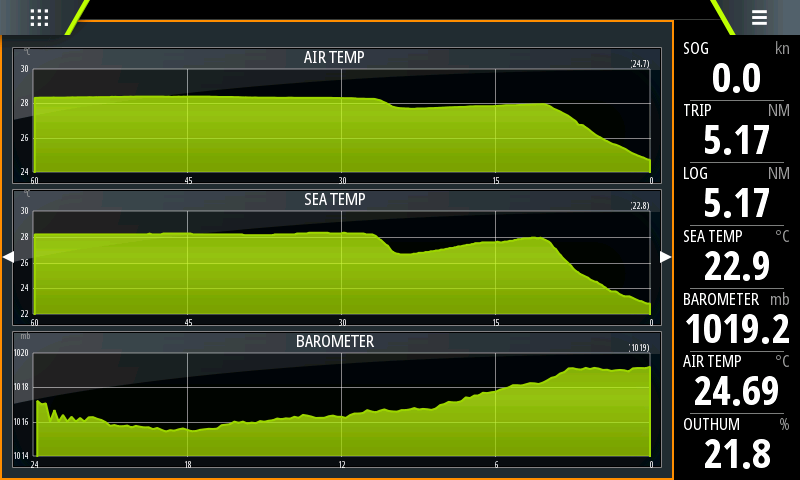
I thought I would do a quick write up of how I set up my new Ruuvi sensors with a Victron Cerbo GX and sent that data to my B&G plotters following on from my fuel gauge post (Fuel Gauge Calibration). Apollogies for the lengthy post. I couldn't find any concise documentation on how this is supposed to be done, just loads of AI telling me it could be done and referencing numerous unhelpful forum posts. For these instructions, it's best to work from a computer browser to access the Cerbo interface and subsequently the Signal K and Node Red stuff. None of this is hard or scary so don't be put off with the new terms.
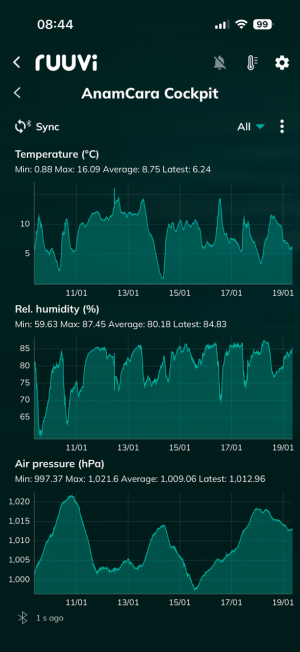
The RuuviTag 4 in 1 sensors, or the pro variant of them offer temperature, Barometer, Humidity and movement (3 axis accelerometer). They're around £30-£40 at the moment from Amazon (Amazon.co.uk) and connect via Bluetooth Low Energy, giving a battery life of up to two years. They have a great app, but can also integrate with boat systems nicely.
They are directly compatible with Victron VenusOS devices including Cerbo and any Raspberry Pi running the OS. They do need Bluetooth, and for this I bought a TP-Link UB4A from Amazon for £4 (Amazon.co.uk). I also added a cheap unpowered USB hub as I was already using the USB ports - unpowered is working fine for my use with VE-Direct and BTLE adapter but your system may need a powered hub if you do anything fancy like a USB GPS dongle.
The Cerbo GX does have Bluetooth, but mine is one of the versions where the processor overheats and disables Bluetooth. The manual has this to say:
"For Cerbo GX units with serial numbers up to and including HQ2207, internal Bluetooth is disabled when CPU
temperature exceeds 53 °C. In such cases, a USB Bluetooth adapter is required for reliable operation. Units
with serial numbers HQ2208 and later, as well as Cerbo-S GX, are not affected."
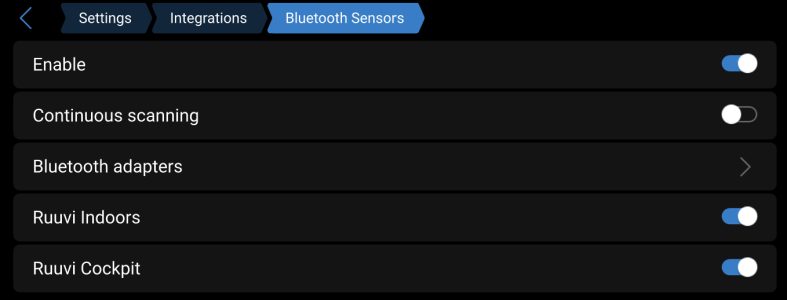
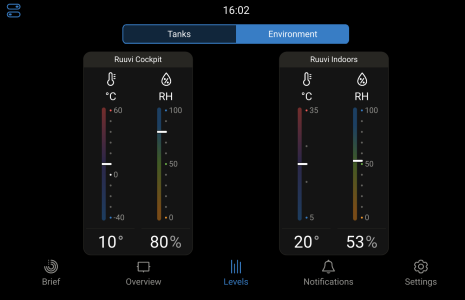
To pair the sensors, open the Victron interface and go to Settings, Integrations, Bluetooth Sensors. Here you should see your Ruuvi sensor(s), just toggle them on to pair and your Victron system will start getting temperature, Barometer, etc. immediately. At this stage, your Cerbo will display the sensor under the environment tab of the Levels page (using interface v2 here!). Your Device will also begin uploading this data to VRM for long term collection and viewing.

Now to the NMEA2K. Firstly, you'll need your device to be connected via NMEA2K cable. Thanks to @PaulRainbow this is quite cheap Victron VE CAN to NMEA 2000.
Next, you need to go to Settings, General, Firmware, Online Updates and select the "Large" image which includes Node Red and SignalK. Once selected, check for updates and install. This does not remove your settings and is seemingly quite safe to do, but maybe take a backup of your settings to be sure. The device will reboot after a few minutes and has a couple of new menu options.
Go to Settings, Integrations and enable Signal K. DO NOT enable Node Red, we won't be using that from here. It's not an issue to have both versions, but it will take resources so unless you actually know what you're doing don't turn it on.
Click Open Link to access Signal K and you'll find yourself in a new portal with some fairly powerful capabilities. Click on the App Store link (don't worry, no charge for the apps).
We're going to use two plugins for this integration, signalk-to-nmea2000 which is preinstalled and @signalk/signalk-node-red which you need to search for and install. We're going to use the NodeRed app to convert some data and remap it for the NMEA plugin to use, and the NMEA plugin will push that data out to the NMEA network.
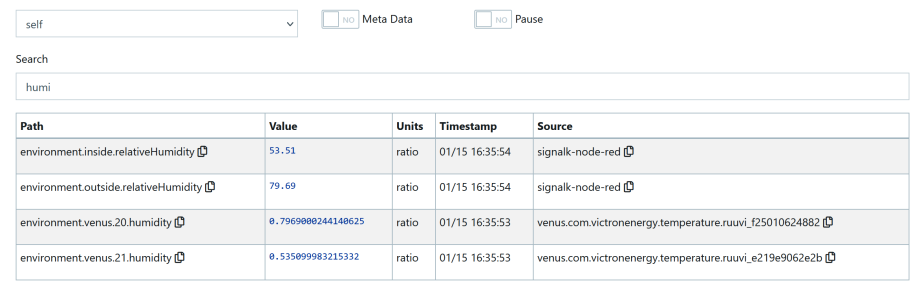
Now click on Data Browser in the left hand menu. We need to find the paths to our Ruuvi Data. In the search box type "humidity" and you'll see several values, you're looking for ones that look like "environment.venus.20.humidity".
Because I have two sensors I have two of these, each showing the ruuvi source on the right hand side. Copy the paths you need, mine are:
environment.venus.20.humidity
environment.venus.20.temperature
environment.venus.20.pressure
environment.venus.21.humidity
environment.venus.21.temperature
environment.venus.21.pressure
Yours may be different as they are assigned by the system, but they will be similar and you'll have three per sensor.
Next, click Server, Plugin Config on the left side menu. You'll see various plugins here, scroll and enable "Signal K to NMEA 2000". Don't enable any logging as it just uses space on the disk and will eventually fill it up.
Scroll down slowly. We need to enable multiple PGNs for the NMEA2000 to ensure broad plotter support since there are many versions of these and not all plotters/instruments support all of them. The list I enabled for one internal and one external sensor is:
Atmospheric Pressure (130311)
Outside Humidity (PGN130313)
Inside Humidity (PGN130313)
Atmospheric Pressure (130314)
Outside Temperature (130312)
Outside Temperature (130316)
Inside Temperature (130312)
Inside Temperature (130316)
For each one, tick Enabled.
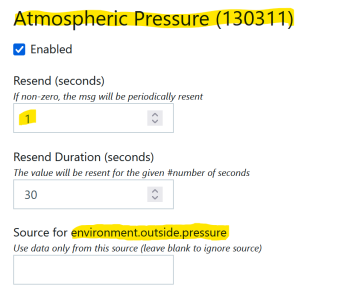
Each will have a box at the top for Resend - set this to 1 second for all.
Each will have a box at the bottom for Source such as "Source for environment.outside.pressure". It's the "environment.outside.pressure" part we need to fill with data later, so make a note of these as they are different for inside and outside and you may use different ones than I did.
When you reach the bottom, click Submit to save your changes. We now have the NMEA plugin configured but need to connect data to it.
Scroll up and ensure that the Node Red plugin is enabled. If not, enable it and hit Submit.
Click on WebApps in the left hand menu then Node Red. Note that this Node Red is SignalK enabled while the stock Victron one is not, that's why we didn't use the one in Victron.
You'll now be in the Node Red interface. Think of this like wiring things together. On the left you have functions and other stuff. For this guide we're only interested in three things.
Signal K Subscribe - this will connect to our data source i.e. our Ruuvi sensor data.
Signal K Send Pathvalue - this will connect to our data out i.e. the NMEA2K paths we found earlier like "environment.outside.pressure"
Function function - this will transform data where needed. My B&G doesn't properly format Relative Humidity so I had to multiply it by 100 and limit to 2 decimal places for it to show as a percentage (53.2%) rather than as a number (0.532). It's a small thing, but important to me.
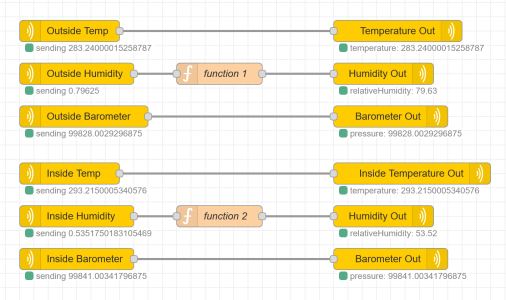
We will need one line per data point, so three per sensor (temp, humidity, baro pressure). For each, drag a subscribe and send pathvalue onto your flow workspace. Drag the grey square on the right of the subscribe box to the one on the left of the send pathvalue box (just like wiring!).
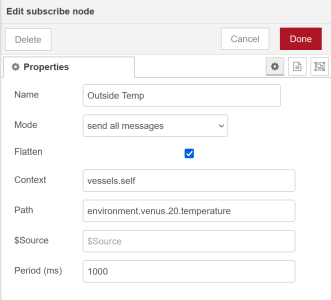
Double Click the subscribe node and fill in a name such as "outside barometer sensor". Fill in the path with your ruuvi data path from above, such as "environment.venus.20.pressure".
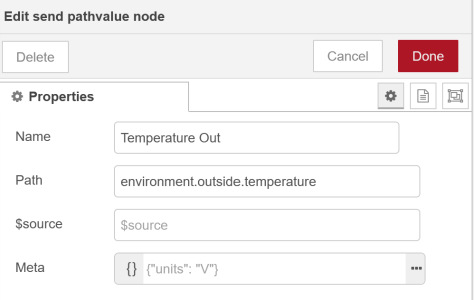
On the corresponding send pathvalue node double click and again fill in a name such as "outside barometer N2K" and set the path to the matching one from the NMEA2000 plugin from above such as "environment.outside.pressure".
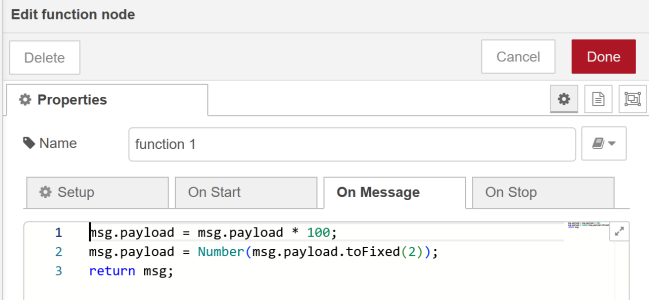
For the Humidity line, I added a function between the subscribe and send pathvalue nodes. In the OnMessage tab of this, I added the following code. There are neater ways to do this (but they aren't more efficient) but I wanted it easy to understand to share here. Line 1 multiplies the incoming value by 100. Line two takes that value and rounds it to two decimal places. Line two also tells the system to return the value as a number rather than text. Line three sends the result to the next node (send pathvalue).
"msg.payload = msg.payload * 100;
msg.payload = Number(msg.payload.toFixed(2));
return msg;"
Click Deploy at the top right of the screen. You may need to restart the Cerbo but it should now be sending temperature, barometer, and relative humidity to your NMEA network.
The RuuviTag 4 in 1 sensors, or the pro variant of them offer temperature, Barometer, Humidity and movement (3 axis accelerometer). They're around £30-£40 at the moment from Amazon (Amazon.co.uk) and connect via Bluetooth Low Energy, giving a battery life of up to two years. They have a great app, but can also integrate with boat systems nicely.
They are directly compatible with Victron VenusOS devices including Cerbo and any Raspberry Pi running the OS. They do need Bluetooth, and for this I bought a TP-Link UB4A from Amazon for £4 (Amazon.co.uk). I also added a cheap unpowered USB hub as I was already using the USB ports - unpowered is working fine for my use with VE-Direct and BTLE adapter but your system may need a powered hub if you do anything fancy like a USB GPS dongle.
The Cerbo GX does have Bluetooth, but mine is one of the versions where the processor overheats and disables Bluetooth. The manual has this to say:
"For Cerbo GX units with serial numbers up to and including HQ2207, internal Bluetooth is disabled when CPU
temperature exceeds 53 °C. In such cases, a USB Bluetooth adapter is required for reliable operation. Units
with serial numbers HQ2208 and later, as well as Cerbo-S GX, are not affected."
To pair the sensors, open the Victron interface and go to Settings, Integrations, Bluetooth Sensors. Here you should see your Ruuvi sensor(s), just toggle them on to pair and your Victron system will start getting temperature, Barometer, etc. immediately. At this stage, your Cerbo will display the sensor under the environment tab of the Levels page (using interface v2 here!). Your Device will also begin uploading this data to VRM for long term collection and viewing.
Now to the NMEA2K. Firstly, you'll need your device to be connected via NMEA2K cable. Thanks to @PaulRainbow this is quite cheap Victron VE CAN to NMEA 2000.
Next, you need to go to Settings, General, Firmware, Online Updates and select the "Large" image which includes Node Red and SignalK. Once selected, check for updates and install. This does not remove your settings and is seemingly quite safe to do, but maybe take a backup of your settings to be sure. The device will reboot after a few minutes and has a couple of new menu options.
Go to Settings, Integrations and enable Signal K. DO NOT enable Node Red, we won't be using that from here. It's not an issue to have both versions, but it will take resources so unless you actually know what you're doing don't turn it on.
Click Open Link to access Signal K and you'll find yourself in a new portal with some fairly powerful capabilities. Click on the App Store link (don't worry, no charge for the apps).
We're going to use two plugins for this integration, signalk-to-nmea2000 which is preinstalled and @signalk/signalk-node-red which you need to search for and install. We're going to use the NodeRed app to convert some data and remap it for the NMEA plugin to use, and the NMEA plugin will push that data out to the NMEA network.
Now click on Data Browser in the left hand menu. We need to find the paths to our Ruuvi Data. In the search box type "humidity" and you'll see several values, you're looking for ones that look like "environment.venus.20.humidity".
Because I have two sensors I have two of these, each showing the ruuvi source on the right hand side. Copy the paths you need, mine are:
environment.venus.20.humidity
environment.venus.20.temperature
environment.venus.20.pressure
environment.venus.21.humidity
environment.venus.21.temperature
environment.venus.21.pressure
Yours may be different as they are assigned by the system, but they will be similar and you'll have three per sensor.
Next, click Server, Plugin Config on the left side menu. You'll see various plugins here, scroll and enable "Signal K to NMEA 2000". Don't enable any logging as it just uses space on the disk and will eventually fill it up.
Scroll down slowly. We need to enable multiple PGNs for the NMEA2000 to ensure broad plotter support since there are many versions of these and not all plotters/instruments support all of them. The list I enabled for one internal and one external sensor is:
Atmospheric Pressure (130311)
Outside Humidity (PGN130313)
Inside Humidity (PGN130313)
Atmospheric Pressure (130314)
Outside Temperature (130312)
Outside Temperature (130316)
Inside Temperature (130312)
Inside Temperature (130316)
For each one, tick Enabled.
Each will have a box at the top for Resend - set this to 1 second for all.
Each will have a box at the bottom for Source such as "Source for environment.outside.pressure". It's the "environment.outside.pressure" part we need to fill with data later, so make a note of these as they are different for inside and outside and you may use different ones than I did.
When you reach the bottom, click Submit to save your changes. We now have the NMEA plugin configured but need to connect data to it.
Scroll up and ensure that the Node Red plugin is enabled. If not, enable it and hit Submit.
Click on WebApps in the left hand menu then Node Red. Note that this Node Red is SignalK enabled while the stock Victron one is not, that's why we didn't use the one in Victron.
You'll now be in the Node Red interface. Think of this like wiring things together. On the left you have functions and other stuff. For this guide we're only interested in three things.
Signal K Subscribe - this will connect to our data source i.e. our Ruuvi sensor data.
Signal K Send Pathvalue - this will connect to our data out i.e. the NMEA2K paths we found earlier like "environment.outside.pressure"
Function function - this will transform data where needed. My B&G doesn't properly format Relative Humidity so I had to multiply it by 100 and limit to 2 decimal places for it to show as a percentage (53.2%) rather than as a number (0.532). It's a small thing, but important to me.
We will need one line per data point, so three per sensor (temp, humidity, baro pressure). For each, drag a subscribe and send pathvalue onto your flow workspace. Drag the grey square on the right of the subscribe box to the one on the left of the send pathvalue box (just like wiring!).
Double Click the subscribe node and fill in a name such as "outside barometer sensor". Fill in the path with your ruuvi data path from above, such as "environment.venus.20.pressure".
On the corresponding send pathvalue node double click and again fill in a name such as "outside barometer N2K" and set the path to the matching one from the NMEA2000 plugin from above such as "environment.outside.pressure".
For the Humidity line, I added a function between the subscribe and send pathvalue nodes. In the OnMessage tab of this, I added the following code. There are neater ways to do this (but they aren't more efficient) but I wanted it easy to understand to share here. Line 1 multiplies the incoming value by 100. Line two takes that value and rounds it to two decimal places. Line two also tells the system to return the value as a number rather than text. Line three sends the result to the next node (send pathvalue).
"msg.payload = msg.payload * 100;
msg.payload = Number(msg.payload.toFixed(2));
return msg;"
Click Deploy at the top right of the screen. You may need to restart the Cerbo but it should now be sending temperature, barometer, and relative humidity to your NMEA network.
Last edited: