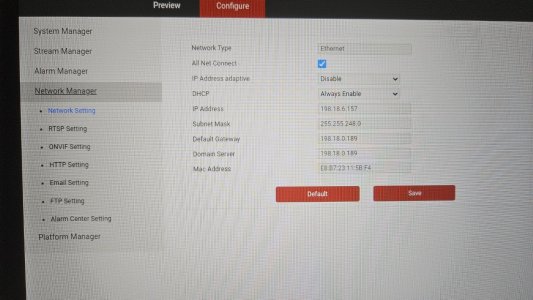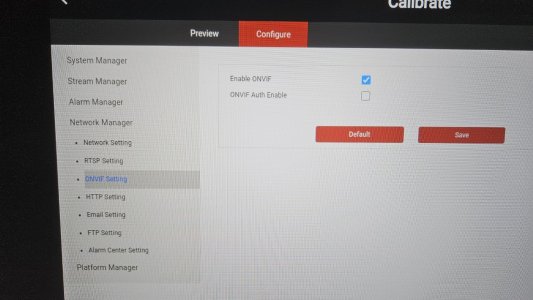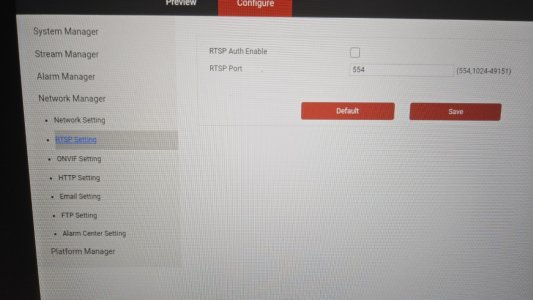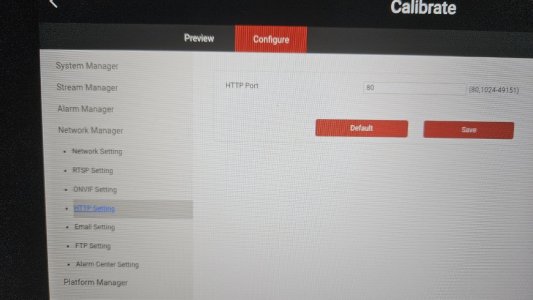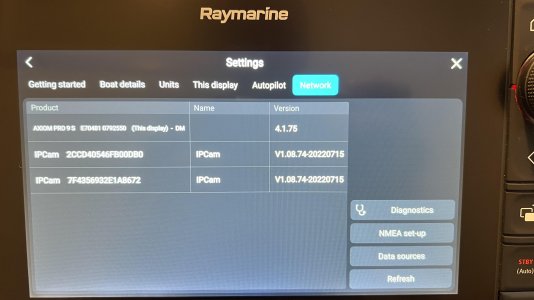
External camera interfaced with Raymarine Axiom Pro chart plotter.

If you cover up the camera, do you see if the IR lights come on? That will indicate if the camera has at least got power and booted up.
Yes I have checked that I can see the feint led red lights. I also went into the camera to make sure the 12 volts was working. I dont think it needs to boot up for the led lights to come on only 12 power
 
Under the camera molded rj45 female socket is what looks like a green small led is this what you are refering too? Also I have the non-PoE version with the separate 12 supply as I have already run 12 volts to the cockpit roof.
That small green led is the network activity light. If that is not active, then there would appear to be no network connection. This is why I suggested seeing if the InfraRed lights around the lens are glowing which would indicate the unit has booted up. I know it may be a silly observation, but have you tried a different network cable?
 
Yes I have checked that I can see the feint led red lights. I also went into the camera to make sure the 12 volts was working. I dont think it needs to boot up for the led lights to come on only 12 power
The red lights should normally be off if there is good ambient light I think. I do not have the camera immediately to hand at present.
 
you are correct only if you block light do the leds come on. I have just run your IP Scan utility and the IP address does not appear so I'm assuming a faulty camera. I'll wait till the new one arrives in 10 days. You mention using thr Gadinan web interface to change the settings ie DHCP etc. Is that the VMS app for windows or something else.
 
That small green led is the network activity light. If that is not active, then there would appear to be no network connection. This is why I suggested seeing if the InfraRed lights around the lens are glowing which would indicate the unit has booted up. I know it may be a silly observation, but have you tried a different network cable?
Yes i have tried three different network cables as I too assumed this was where the problem was. I sort of wondered if my 12 volt 2A power supply was the issue but it says it is for cctv cameras so I assume ok.
 
you are correct only if you block light do the leds come on. I have just run your IP Scan utility and the IP address does not appear so I'm assuming a faulty camera. I'll wait till the new one arrives in 10 days. You mention using thr Gadinan web interface to change the settings ie DHCP etc. Is that the VMS app for windows or something else.
Many devices use a web access page to set them up. If you know the IP address, you can usually just type that into the browser and it will then ask you to log into the device. In the case of the Gadinan camera, the user is admin and password is 123456. No need for a third party chinese app to be installed on your PC.
Is your main network base address 192.168.1.xxx ?
I think you found that the clue is in that the network lights on both your hub and camera connector do not come on.
If you decide to buy another, AFAIK the POE version which I purchased will also accept 12V on its power connector so that way you have an option later should you have a POE hub.
 
Many devices use a web access page to set them up. If you know the IP address, you can usually just type that into the browser and it will then ask you to log into the device. In the case of the Gadinan camera, the user is admin and password is 123456. No need for a third party chinese app to be installed on your PC.
Is your main network base address 192.168.1.xxx ?
I think you found that the clue is in that the network lights on both your hub and camera connector do not come on.
If you decide to buy another, AFAIK the POE version which I purchased will also accept 12V on its power connector so that way you have an option later should you have a POE hub.
ordered now as 12 volt only.
 
There is an iOS app called XMEye Pro that will find cameras on the same network.
Open the app, dismiss the advert(grrr), On the top right click on the +, choose Wired Camera, then click LAN search.
This will find any cameras on the network and provide you the IPaddress and MAC address.
Assuming the camera is configured for DHCP, which they are usually from new.

Once you know the ipaddress you can configure via the camera webpage.
 
Last edited:
As a quick update, I plugged my Gadinan camera into the hub (connected to my Axiom+) and it came up straight away.
Sorry that the images are not great, but the screens show the main camera settings which I set up at home before coming to the boat.
I think I have found one big issue with the Axiom plotters in how it caches login credentials for the camera config web page access (they call it calibrate) pages. One of my other cameras on its first test was connected to the plotter and on the calibrate page I logged in using the default username and password. The plotter remembered this and later when I changed the password at home to something more secure, the plotter now comes up with a message saying wrong username/password without an option to change the values for this particular camera. Obviously some sort of cookie issue? It seems that apart from a factory reset (I am not inclined to do this), there does not seem to be an apparent way to get the plotter to forget previous device credentials.

As a point of interest, the Axiom resets some of the main camera data stream settings to their higher default rates which could be why some 8MP cameras will not work as the data streams are simply too fast.
Now I have a model that works 100% I will order a spare!
 

Attachments

  • 20250415_144228 (Medium).jpg
    20250415_144228 (Medium).jpg
    309.9 KB · Views: 11
  • 20250415_144236 (Medium).jpg
    20250415_144236 (Medium).jpg
    262.8 KB · Views: 11
  • 20250415_144245 (Medium).jpg
    20250415_144245 (Medium).jpg
    271.1 KB · Views: 8
  • 20250415_144252 (Medium).jpg
    20250415_144252 (Medium).jpg
    262.7 KB · Views: 10
My first Gardinam camera didn’t work so just received a working one. Your screenshots of te settings are these from the axiom screen or somewhere else?
 
Ok, so know the camera works now with the axiom but I wanted to cut the power cable off and join that to 12 volts supply as the plug and socket solution made a bad contact.

What I hadn’t expected was 3 wires when expecting a red and black. The three wires are black, red and red/white striped. I had assumed the two reds would join to +12v and black to 12v neg. Any suggestions please
 
Have worked it out. Both cameras working at home including the broken one where Gardinan shipped me a new circuit board which I’ve fitted and now working. Tested on boat but not fitted comes up on my Axiom display. Will fit properly next week.
 
This is frustrating. Can get working perfectly on axiom but as soon as I power off the axiom and power ba k oni loose the video signal. No idea why.
 
This is frustrating. Can get working perfectly on axiom but as soon as I power off the axiom and power ba k oni loose the video signal. No idea why.
Are you using DHCP or Fixed IP?

Its more reliable with Fixed IP, these are my settings on the camera

Manual IP Settings:

SettingValue
DHCPDisabled
IP Address198.18.2.91
Subnet Mask255.255.248.0
Default Gateway198.18.2.46
DNS Server198.18.2.46
 
Also, on the plotter, go into the Settings and Network page. See if the camera is showing. Also see what firmware version is showing for the camera.

View attachment 192715
Father Ted, both you and Dipper Too have used IP address 198.18.2.91 for you and Diper Too uses 198.18.6.157 I put the 198.18.2.9 with the rest of the parameters including disable dhcp and now my home network no longer finds the camera as it is expecting an ip address like 192.168.1.11 or thereabouts. So can no longer log on to the camera. Luckily I purchased a PoE version as well so I’m going to use that disabling dhcp and the other changes but not change the ip
 
If the subnet mask used by the plotter is 255.255.248.0 then your camera will need an IP address in the range of 198.18.0.1 - 198.18.7.254 to be able to communicate with the plotter, so if you disable the use of DHCP, you will need to set it to one of these addresses. If you are using a home PC, you could temporarily assign a manual address to the PC in this range with the subnet mask to gain access to your cameras web interface again to make any necessary changes. You wont need to set a default gateway or DNS address, just an IP and subnet mask.
 
If the subnet mask used by the plotter is 255.255.248.0 then your camera will need an IP address in the range of 198.18.0.1 - 198.18.7.254 to be able to communicate with the plotter, so if you disable the use of DHCP, you will need to set it to one of these addresses. If you are using a home PC, you could temporarily assign a manual address to the PC in this range with the subnet mask to gain access to your cameras web interface again to make any necessary changes. You wont need to set a default gateway or DNS address, just an IP and subnet mask.
Ok thanks, will try that
 
Top