3D Printers

I’ve used Tinkercad and it’s OK and the learning curve is relatively low. It’s not particularly sophisticated but for stuff most people with no training are designing it’s probably good enough. I have used FreeCAD quite extensively but not for a few years. For free software it was very impressive but I did find something glitchy which could be very frustrating. I’m told that those issues have been resolved with the big update that finally came but I’ve not gone back to try it. I switched to using OnShape. Hurricane will hate it because it’s very much in the cloud - but wow it’s impressive. Free subject to some conditions - make sure you understand them though as they do involve your files being “public”.

I do have a pending project and I may go back to the latest version of FreeCAD to see how it copes because I don’t really want the files in the public domain and I might need to go back and edit them in 3,4,5 years time and there’s no certainty OnShape will still exist/be free.
 
I’ve used Tinkercad and it’s OK and the learning curve is relatively low. It’s not particularly sophisticated but for stuff most people with no training are designing it’s probably good enough. I have used FreeCAD quite extensively but not for a few years. For free software it was very impressive but I did find something glitchy which could be very frustrating. I’m told that those issues have been resolved with the big update that finally came but I’ve not gone back to try it. I switched to using OnShape. Hurricane will hate it because it’s very much in the cloud - but wow it’s impressive. Free subject to some conditions - make sure you understand them though as they do involve your files being “public”.

I do have a pending project and I may go back to the latest version of FreeCAD to see how it copes because I don’t really want the files in the public domain and I might need to go back and edit them in 3,4,5 years time and there’s no certainty OnShape will still exist/be free.
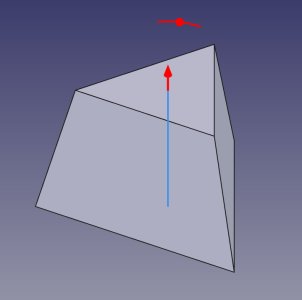
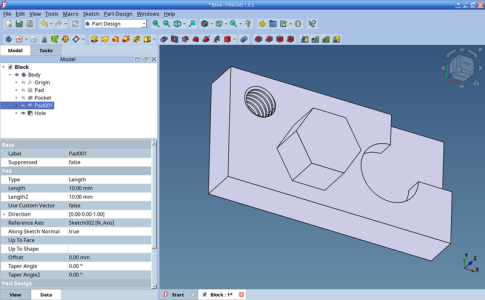
Yep that big update that you refer to was the fix for the Topological problem. All the faces in a design are given names so that a sketch can refer to them. Being fully parametric design software, if you go back and change a previous sketch, you could break the design. This was all fixed over a year ago when they finally release FreeCAD Version 1.0 - FreeCAD has been under development for 20 years so it was high time that a finished version was released. I certainly haven't has those "topological glitches" since Version 1.0 was released. Version 1.1 is due out any time. Looking at the blog on the FreeCAD website it seems that there are about 8 to 10 "blockers" (as they call them) - bugs that need to be fixed before this next release. All the workbenches have new features - the Shetcher is better now than it has ever been. You can get the Version 1.1 Release Candidate version from their website but this shows one of the new features in the main design area (On Screen Graphical Padding - my words):-

Screenshot_2026-02-01_12-29-01.jpg
 
I've just asked Gemini AI for a comparison (in relation to parametric modelling) between TinkerCAD and FreeCAD
This was its answer:-

In FreeCAD, everything is driven by constraints and history. If you want to change the diameter of a hole, you go back to the original sketch or spreadsheet, change the value, and the entire model updates automatically.

In Tinkercad, you are mostly dragging and dropping "primitive" shapes (cubes, spheres, holes) and grouping them. While you can type in dimensions, it doesn't maintain a complex "history tree" of constraints like FreeCAD does. If you move one part, the rest won't automatically adjust to stay connected unless you manually move them.

It goes on to say:-
Use Tinkercad if you need to whip up a simple name tag, a basic bracket, or if you're just getting your feet wet with 3D printing.
Use FreeCAD if you are designing a machine with moving parts where one dimension depends on another, or if you need a professional-grade tool that is open-source.


Of course AI can be wrong but it seems that the old adage "Horses for Courses".
So, for simple designs, I guess that Tinkercad is fine - after all it is produced by Auto Desk who know what they are doing.
But for me, I'm a great fan of Open Source software so its FreeCAD for me.

On the subject of Open Source - have a look at the 3D print slicers out there - I believe they all come from Open Source Projects.
In fact, it is a good example of how Open Source development has helped the whole industry.
 
I’ve used Tinkercad and it’s OK and the learning curve is relatively low. It’s not particularly sophisticated but for stuff most people with no training are designing it’s probably good enough. I have used FreeCAD quite extensively but not for a few years. For free software it was very impressive but I did find something glitchy which could be very frustrating. I’m told that those issues have been resolved with the big update that finally came but I’ve not gone back to try it. I switched to using OnShape. Hurricane will hate it because it’s very much in the cloud - but wow it’s impressive. Free subject to some conditions - make sure you understand them though as they do involve your files being “public”.

I do have a pending project and I may go back to the latest version of FreeCAD to see how it copes because I don’t really want the files in the public domain and I might need to go back and edit them in 3,4,5 years time and there’s no certainty OnShape will still exist/be free.
Just watched this video that you might find interesting - again "horses for courses" but it is a great comparison between Onshape and FreeCAD. The big "take away" for me is that Onshape and FreeCAD are very similar but FreeCAD gives me the confidence that my designs stay with me for now and in the future.


Note for those who might be interested.
This video is very current (at the time of this post) - the presenter is using the new "not yet released" version of FreeCAD. In the later part of his video he uses FreeCAD's "External Geometry" feature and then immediately turns that geometry to construction geometry. You don't need to do that in the old version 1.0 software as External Geometry is deemed as construction geometry. I've been following the development of this feature specifically. In my view, it is more intuitive to consider imported "External Geometry" as construction geometry - just like it does in the old FreeCAD version 1.0. However, the developers seem to have understood that this can lead to confusion so have added a setting in "Edit Preferences" called "Always add external geometry as construction" so that you can set the new FreeCAD Version 1.1 to operate in a similar way to the old FreeCAD version 1.0. I have built a few models using the new FreeCAD Version 1.1 and I always find myself doing exactly what the presenter did in this video. So, for me, I will be setting my system to "Always add external geometry as construction".
I hope that helps any FreeCAD users who will be moving to the new Version 1.1 when it is released in the nest few weeks.
 
being away for a while, since no one is mentioning, if you want power and opensource, you cannot go wrong with Blender
:)
I personally hate it, but have been using AutoCAD from it's DOS days, so difficult to throw away 30+yrs of experience in 3D modeling, but Blender3D never the less is powerful and free. And as Mike says, you own your own files, keep them wherever you like and 10yrs later you can open one and keep on editing

Re 3D printers, last year after a bit of hassle I switched to ABS, so even my testing is done on ABS. An enclosed printer is necessary for that if you're planning on doing something bigger than 50-80mm and with flat surfaces that you want to remain flat and not warp... so if you're planning on setting up a system and you want pieces that can withstand heat cycles on a boat/car/wherever, cannot go wrong with an enclosed one. And yes, you can cover it up with an oversize carton box, good luck with that!

V.
 
Just ordered a Snapmaker U1. It is a tool changer with 4 heads each with its own colour. Also picked up a BAMBU labs A1 Mini for £147 new delivered that is a lovely little machine

 
FreeCAD Version 1.1 is getting nearer. I've been playing with it - there are some interesting new features.

But I'm posting this because I've done some work myself on the Style Sheets that produce FreeCAD's various themes.
FreeCAD comes with the inbuilt option to use one of three themes.
1 - The FreeCAD Dark Theme
2 - The FreeCAD Light Theme
3 - and the FreeCAD Classic Theme.
IMO, FreeCAD's Light and Dark Themes are a bit bland thus giving it an unprofessional look.
FreeCAD's Classic theme simply uses the operating system's theme and by default some strange background colours.
When I first switched to Linux, I developed my own system coloured theme that has worked and will still work well for many years.
However, FreeCAD's screen can be made to look a lot more professional.
There are other themes available if you look in the FreeCAD Addon Manager.
But after loading and testing/trying the short list of available themes, I wasn't impressed.
I couldn't find anything I liked that was better than my Linux system theme (using FreeCAD Classic).

I'm not a great fan of Dark Themes so I decided to make my own theme.
On the face of it, you would think that changing a theme is just a matter of going into FreeCAD's Edit Preferences and setting some colours etc.
Yes, you can do most stuff that way in FreeCAD but good use of extra Style Sheets can make a huge difference to the overall user experience.

Ever since the early days of Windows 95/98 and XP etc, blue has been a dominant colour in desktop design so I decided to make my own FreeCAD Theme using the look and feel of a classic operating system but with a modern twist. The result is MikesBlueTheme. Although I use Linux on all my computers, this theme also works well on Windows and MAC computers. In order to use blue as the main UI background, I had to change some of the colours in the Sketcher but I think it was worth it. I've used it myself enough to give it a good test and passed it around friends for their comments. This theme definitely makes it easier to use FreeCAD.

I have made it available on a Github page so if any of you would like to try it out, please feel free to give it a go.
The Github URL is GitHub - mikerothery/MikesBlueTheme: A blue theme for FreeCAD which contains all the instructions and the actual theme itself.
Just scroll down to see the instructions.
But these are short notes that does the same thing.
1 Open FreeCAD
2 Edit Preferences - Addon Manager
3 Custom Repositories - click the + icon
4 For Repository URL enter - https://github.com/mikerothery/MikesBlueTheme
5 For Branch enter the word - main
6 Click Apply
7 Probably best to close and reopen FreeCAD
8 Navigate to Tools - Addon Manager
9 Search for MikesBlueTheme (just enter Mike and it will find it)
10 Sorry about my logo - it is Tux - the Linux Penguin !!!
11 Click on my theme and then click Install
12 Now go to Edit Preferences again - this time under General
13 Change the Theme to MikesBlueTheme
14 Job done

After installing you will probably want to change the Marker Size to suit your screen.
FreeCAD works well "out of the box" on 1920 x 1080 screen resolutions.
However, the Marker Size (the size of the Vertex etc. in the Sketcher) can be made more prominent by changing:-
Edit Preferences - Display - 3D View - Marker Size
Set to 9px for a 1920 x 1080 (Standard 1K) display
Set to 13px for a 2160 x 1440 (Tested on my Surface Pro) display

MikesBlueTheme works on the current FreeCAD Version 1.0 and the new Version 1.1 to be released shortly.
If you install it on FreeCAD 1.0 now and then upgrade to FreeCAD 1.1 later, the first time the new version is run, a dialog will appear offering a suggestion to copy the settings from the old version of FreeCAD
Click - Copy Configuration (Recommended).
FreeCAD will now copy over all your settings from the old Version including MikesBlueTheme.

If you use FreeCAD, I suggest that you give MikesBlueTheme a try.
I think you will instantly find FreeCAD easier to use.

This is an example of my theme in use:-
ScreenshotModel.resized.png

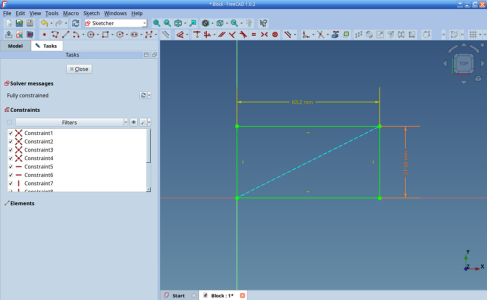
And this is a screenshot of the Sketcher
ScreenshotSketch.resized.png

If you try it, please let me know what you think.
I'm using it anyway.
 
Last edited:
Have to say this thread, this week, has inspired me after seeing and being tempted with buying some boat wall art!
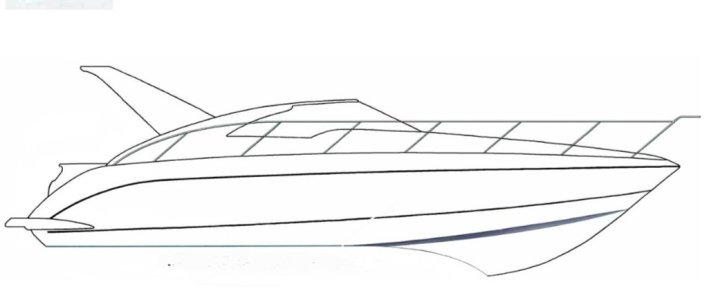
Im ok at Photoshop and graphics so thinking of how hard will it be to go from 2d to 3d graphics and then 3d print? The initial target being wall art of my Targa40 boat as i made the 2d graphic a few years ago. Based on BAMBU printer price in #366 might well be cheaper than buying.
So questions are :
- is this doable?
- whats a good program to begin on (im PC based) ? (some of terminology in this thread is bit too technical at my stage)

TIA
 

Attachments

  • T40.jpg
    T40.jpg
    29.6 KB · Views: 12
  • wall art.jpg
    wall art.jpg
    66.2 KB · Views: 9
Have to say this thread, this week, has inspired me after seeing and being tempted with buying some boat wall art!
Im ok at Photoshop and graphics so thinking of how hard will it be to go from 2d to 3d graphics and then 3d print? The initial target being wall art of my Targa40 boat as i made the 2d graphic a few years ago. Based on BAMBU printer price in #366 might well be cheaper than buying.
So questions are :
- is this doable?
- whats a good program to begin on (im PC based) ? (some of terminology in this thread is bit too technical at my stage)

TIA
I think you might find the 3D printer bed sizes too small to make wall art.
I guess your wall art could be made in sections but might be a problem when putting the printed parts together.

Yesterday, I designed and made some keyfobs.
The slicer that I use (Bambu Studio) only uses svg format vector graphics.
Like you, my background is in Photoshop so I struggled with the vector/svg.
I got there in the end though.
You ask what software to use.
From my experience yesterday, I guess that you could design the wall art using Inkscape.
Then import the svg output from Inkscape directly into Bambu Studio.
Inkscape is free to download and use.

My design yesterday used two different colours to create a keyfob.


Obviously, that concept would require a multi colour printer and that design was a lot smaller.
I guess that wall art would use a single colour so the process would be different but the concepts of transferring your image into the slicer (Bambu Studio) would be very similar to the black sections in my design yesterday.

Wall art isn't the reason that I bought my 3D printer.
I hope that helps.
 
agree with Mike,

If I had no experience with 3D, with lasercutting and 3D printing, I'd not embark into such a project.
There are two different issues to discuss here:
A. going from a raster ("unlinked" pixel assembly as far as computers are concerned!) image/sketch to a vector format
B. creating a physical output out of step A.

A: your sketch is lovely sharp, clear, would be relatively simple to convert to vector, different ways to skin that cat, probably even online free tools would do it. Trace is the keyword, where system will contour each stroke with vectors.

B: as Mike says, built plates are small (typically 20-25cm, prices go up if you want something larger but I think sizes stop at circa 30cm unless you go silly prices). You can break/"cut" your 3D model into pieces (on a 3D PC s/w, long discussion on tools in the previous pages of this thread) and print one by one. Problem in that is that whole design will be thin flexing pieces, whole will be flimsy and supergluing bits together will make it look crap tbh.
IMHO, you're much better off going to a lasercutting fablab and use either SS sheeting or plywood, or acrylic or whatever to create a one off at whatever size you like. Much cheaper and better quality than buying a 3D printer and messing about with. Of course you'll realise how many things you can do with a 3D printer and you'll eventually get hooked but that's a different thing
😁

Personally I'd get the design in 2D vector format and waterjet it on circa 5mm stainless steel plate. Would look fab!


cheers

V.
 
agree with Mike,

If I had no experience with 3D, with lasercutting and 3D printing, I'd not embark into such a project.
There are two different issues to discuss here:
A. going from a raster ("unlinked" pixel assembly as far as computers are concerned!) image/sketch to a vector format
B. creating a physical output out of step A.

A: your sketch is lovely sharp, clear, would be relatively simple to convert to vector, different ways to skin that cat, probably even online free tools would do it. Trace is the keyword, where system will contour each stroke with vectors.

B: as Mike says, built plates are small (typically 20-25cm, prices go up if you want something larger but I think sizes stop at circa 30cm unless you go silly prices). You can break/"cut" your 3D model into pieces (on a 3D PC s/w, long discussion on tools in the previous pages of this thread) and print one by one. Problem in that is that whole design will be thin flexing pieces, whole will be flimsy and supergluing bits together will make it look crap tbh.
IMHO, you're much better off going to a lasercutting fablab and use either SS sheeting or plywood, or acrylic or whatever to create a one off at whatever size you like. Much cheaper and better quality than buying a 3D printer and messing about with. Of course you'll realise how many things you can do with a 3D printer and you'll eventually get hooked but that's a different thing
😁

Personally I'd get the design in 2D vector format and waterjet it on circa 5mm stainless steel plate. Would look fab!


cheers

V.
Adding to @vas post
I keep notes on everything that I do.
So the following notes detail instructions on how to convert a .jpg file to .svg vector format using Inkscape.
These notes use Inkscape software that is available free to download and use.
People might find these notes helpful - I used Gemini AI to get these instructions.

The image that I used in the following notes was a simple outline on a white background.

Open Inkscape
Import the JPG
Clicked on Image to select it
Click Path - Trace Bitmap (this is the most important step for photos).
In the panel on the right:
Select Single Scan.
Ensure Brightness Cutoff is selected.
Crucial: Check the box for "Remove Background" in the Multicolour Tab (this removes the white square around the image).
Click Apply.
The above creates a new vector image (path) over the top of the old one
Drag the new vector image to the side.
Delete the original JPG.
Now, click your new "Vector" image. Press N—if you see tiny gray nodes, you’ve succeeded!
Finalize
Now that you have the "Node" version:
With the dog selected, go to Path - Union.
Then Save as filename - Plain SVG
The saved file will then be an SVG file that will import into Bambu Studio but could, of course be used in other software.

I'm not an expert in the use of Inkscape but these notes worked for me.

These notes might be helpful to anyone (like me) who has used bitmap images (with the likes of Photoshop) all their lives.
 
  • Like
Reactions: vas
I made another little video re some nice possibly essential 😁 printed mods you can easily print on and for the A1 mini. These are very good all can be downloaded from Maker World and help you learn how to do various things re 3d printing. Hope this helps and newbies

 
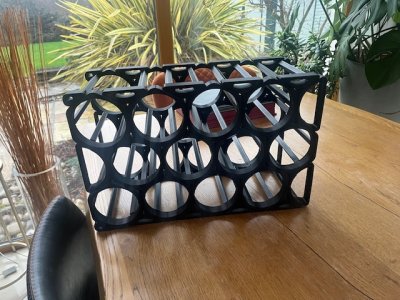
The Bambu Lab A1 is going well so far. I’ve printed lots of small parts and designed a few items. I’ve just finished my first bigger project. I need a wine rack for the bottom of one of my cabinets in the main saloon.
IMG_3129.jpeg
I also modelled the window drain cover I mentioned a few weeks ago. I used Freecad and initially it didn’t work well because the thickness function added to the outer shell and made it too big. But I redrew it and it turned out perfect. Ocean Chandlery charge nearly €20 for these temp.jpeg
 
The Bambu Lab A1 is going well so far. I’ve printed lots of small parts and designed a few items. I’ve just finished my first bigger project. I need a wine rack for the bottom of one of my cabinets in the main saloon.
View attachment 206910
I also modelled the window drain cover I mentioned a few weeks ago. I used Freecad and initially it didn’t work well because the thickness function added to the outer shell and made it too big. But I redrew it and it turned out perfect. Ocean Chandlery charge nearly €20 for these View attachment 206909
Wine racks look great

Regarding FreeCAD's thickness tool. I think you need to treat it like the other "dressup" functions.
Dressups are Fillets and Chamfers - best if they are applied at the end of the design or they can make the design impossible to make.
For example making a 3mm fillet on a 2mm thick model.
However, the Thickness Tool does work well - even for strange shapes.
 
Really loving the A1 mini (Thanks Bigplumbs).
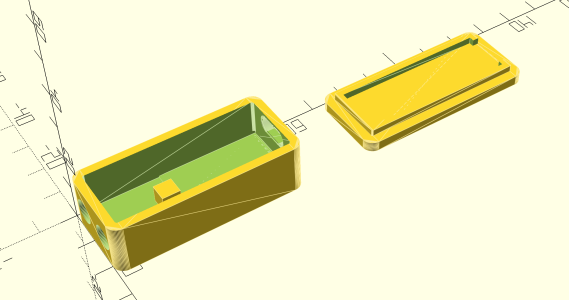
Main reason was to design and print these cases for a boat monitoring application based on ESP32, but finding other fun stuff to print such as hooks for the garage, mount for a Echo 8 etc....

Here is the ESP32 case.

Screenshot 2026-03-04 at 17.06.37.png
 
One of my first projects was a thermostat/humidistat/barometric pressure sensor for my Home Assistant using the ESP Home addon.
I used the 8266 (predecessor to the ESP32) - cheap as chips - literally.
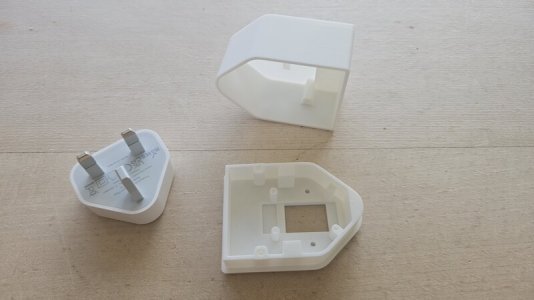
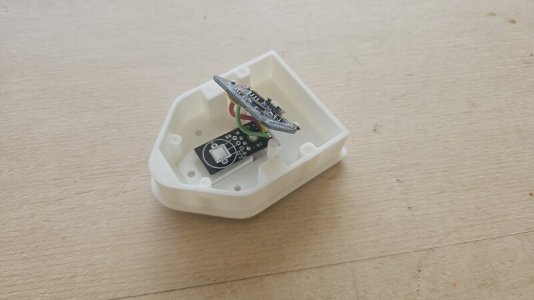
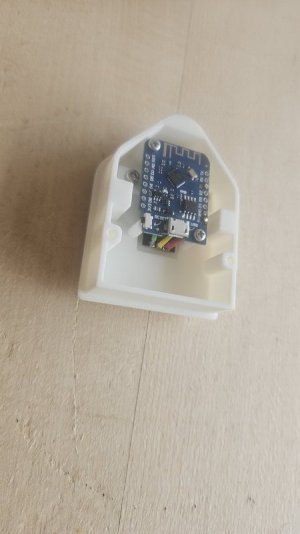
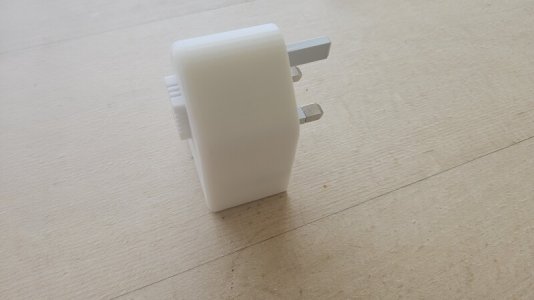
The idea was to build a thermostat/humidistat/barometric pressure sensor that plugs into a 13A socket - like the ESP 32, the 8266 has WiFi so it only needed power.
I designed it around a cheap USB charger so that I didn't have to use any mains wiring.
Designed using FreeCAD - and printed on my Bambu Lab X1C (not now available - IMO, the P2S is currently the sweet spot 3D printer).
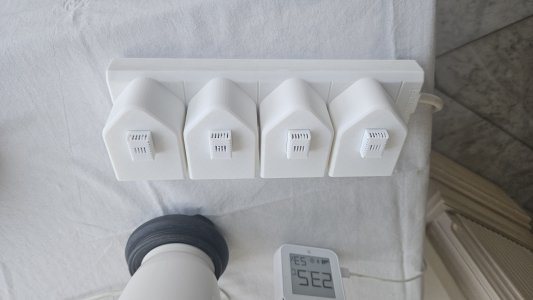
Here are some pics of the final design which has been working for nearly 2 years.

20240514_124702.resized.jpg

20240514_124855.resized.jpg

20240514_125459.resized.jpg

20240514_130131.resized.jpg


I made several and spread them around the house.

20240520_185137.rotated.jpg
 
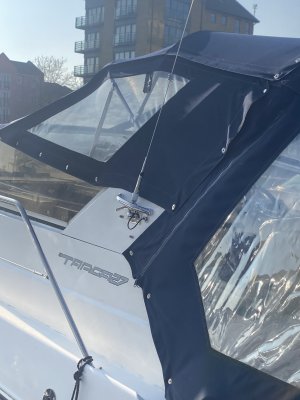
I use my Creality K2CFS regularly for all sorts of things. Some Fairline Targa 27 boat parts recently include a conversion set for an SO239 socket in a 1" Marine mount, TPU gaskets for it and spacers for the grab handle, so that it would clear the aerial base.

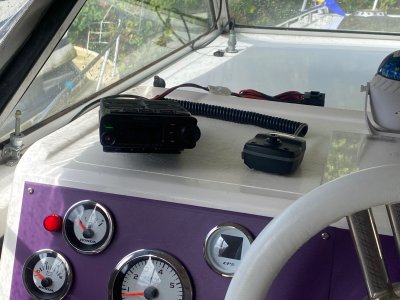
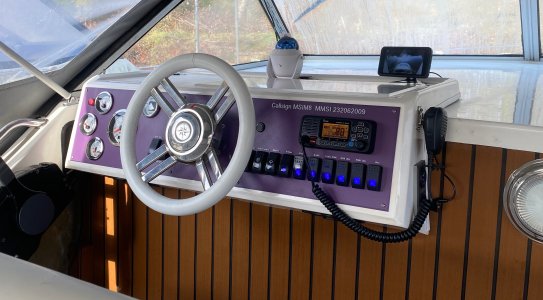
I made a nylon bush set for an outboard motor steering linkage, various blanking plates, placards for gas and battery master switches, aerial mast clamps to fit the rails on my Viking, speaker housings to fit the dinette shelf, a complete replacement dash and a host of other bits designed on Fusion 360.

IMG_1379.jpegIMG_3055.jpeg
 
Last edited:
Top