Marine Navigator and Antares charts

Ian_Edwards

Well-Known Member
Joined
9 Feb 2002
Messages
2,222
Location
Aberdeen Scotland
Visit site
I've successfully loaded Marine Navigator (full version) and Visit My Harbour admiralty charts onto my old Hudl 2. It all works, if a little slow to refresh.

I have the current set of Antares Charts which I'm using with Open CPN on my laptop, but can't see any instruction on how to load then onto the Hudl 2, or any other Android device.

Visit My Harbour provide very clear instruction on how to load their charts, transfer the zip file to the Hudl and the load from that.

Do I just load the various Antares chart folders onto the Hudl and then load each one?

Apologies if this is a daft question, but I've ended up in a muddle after taking a guess on things like this before.
 
I can't see anything on the Antares website so probably best to email Bob and ask.

Or get an iPad. :)
 
I emailed Bob and got an immediate response, I've now got the charts loaded, I think, but I can't see them on the display. Marine Navigator isn't a package that Antares supports.
So after messing around for a couple of hours, I'm not really any further forward.
 
I've not used Marine Navigator but I read that it uses BSB format. There's a folder in the Antares package Charts/BSB for PC ... and that's the only part you need. How to get Marine Navigator to find them, I don't know but surely there's help on importing charts.

The pilotage notes are also useful; they are the files in the folder called Files. They are a set of web pages readable by your browser. Start from Introduction_files\Chart_Selector.htm and it should be self-explanatory.

Derek
 
I'll run through the steps as I'm unsure how far you've got.
1. make a zip file of all the Antares .kap files, excluding the selector charts
2. copy this zip into the bsb_root directory on the device
3. use the MN import function to import it - takes a good while
(you might be at this stage)
4. MN will have created a directory with the same name as the zip that you imported - it may be on the device or the sdcard but will be in android/data/de.kemiro.marinenavigator2/files/charts on one or other
5. look in this directory on both the device and the sdcard and find where MN has put the VMH charts directory 'vmhUK+IRl-2018' or similar name
6. now you have 2 options, either
- move the Antares directory to be on a different location (device or sdcard) to the VMH charts above and then rename it to exactly match the name used for the VMH directory.
- or move all the contents of the Antares directory into the VMH directory.
Both methods work but I prefer the first one as it keeps the 2 chart sources seperate making updating easier.
Sorry if that's not very clear - written on a tablet on a bouncing boat. Any questions, ask
 
P.S. if you have completed steps 1-3 already then the Antares charts will have been imported it's just that they are not viewable concurrently with the VMH charts.

Tap the 'A' icon (Automatic or Manual chart selection) and it will open the chartset selection page. The header line will show which chartset is active and it will likely be 'vmhUK+IRL-2018'. Tap this and then you should see all the chartsets that are loaded and you should be able to switch to Antares and view just those (deselecting the VMH charts).

What steps #4 onwards do is make VMH and Antares viewable at the same time with scanning and zooming automatic between all charts.
 
Sometimes the chart program will not find the directory with the charts. I use MemoryMap and the way I use to establish the link is to find a file in the Antares Chart folder using ES File Explorer., click on it and then it will suggest MemoryMap as the program For some unknown reason, this does not work if using Solid Explorer.
 
I've spent some time on this problem and I now have two identical folder structure on the Hudl.

PC\Hudl 2\SD card\Android\data\de.kemiro.marinenavigator2\files\charts\vmhUK+IRL-2018 ... which has the file: UK-IRL-2018.1.zip on it

and

PC\Hudl 2\Internal storage\Android\data\de.kemiro.marinenavigator2\files\charts\vmhUK+IRL-2018 .... which has the file: Antares kap files 2018.zip on it

Currently I can only see the antares charts, and It appears that I have to load each chart individually, all 400+ of them.

On the Hudl the directory for the Antares charts shows as: storage/emulation/0/android/de.kemiro.marinenavigator2/files/charts/vmhUK+IRL-2018

Is this the same as the SD card?

I must be doing something wrong, but what?
 
Last edited:
emulated/0 is the same as the device's internal storage.

Very hard to say what's going on or what you've done wrong, obviously.
When you say that the directory 'has the file xxxxxxx.zip on it' do you mean that is where the zip has been imported to? The zip files themselves are redundant once imported and can be deleted. The two sub-directories to /charts should be full of .mnx files and sub-directories.

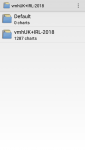
What do you see when you go to the page pictured in my attachment which shows the chartsets that are loaded?
In my picture the 1278 charts equal the total of all the VMH and Antares charts, read as one chartset by the app.
 

Attachments

  • Screenshot_2018-06-20-14-31-44.png
    Screenshot_2018-06-20-14-31-44.png
    57.5 KB · Views: 8
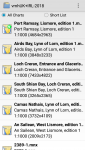
The the screen one level back should show the charts in the vicinity of the current position.
 

Attachments

  • Screenshot_2018-06-20-14-31-40.png
    Screenshot_2018-06-20-14-31-40.png
    263.7 KB · Views: 5
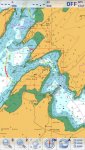
Then on the chart display itself you should get the Admiralty chart overlayed by the Antares chart outlines in red.
To be able to scroll between charts the chart selection icon (second from right) must show A for automatic.
 

Attachments

  • Screenshot_2018-06-20-14-31-09.jpg
    Screenshot_2018-06-20-14-31-09.jpg
    124.8 KB · Views: 8
Last edited:
Top